.png?width=7000&height=3938&name=Anunta%20Blog%20Banner%20(7).png)
AI
%20(2).png?width=3750&height=2188&name=How%20to%20Reduce%20Azure%20Virtual%20Desktop%20Costs%20in%207%20Steps%20(2026)%20(2).png)

If you're running Azure Virtual Desktop (AVD), your monthly Azure bill has probably become a frequent topic of conversation. Compute costs, storage fees, and networking charges add up quickly—especially when your environment scales to support hundreds or thousands of users. Anunta helps enterprise IT teams cut AVD costs without hurting user experience by applying proven optimization techniques across autoscaling, storage, and session host configuration.
The good thing is that AVD offers several native cost controls that many organizations overlook or underutilize. This guide walks you through seven steps to reduce your Azure Virtual Desktop costs while keeping performance intact.
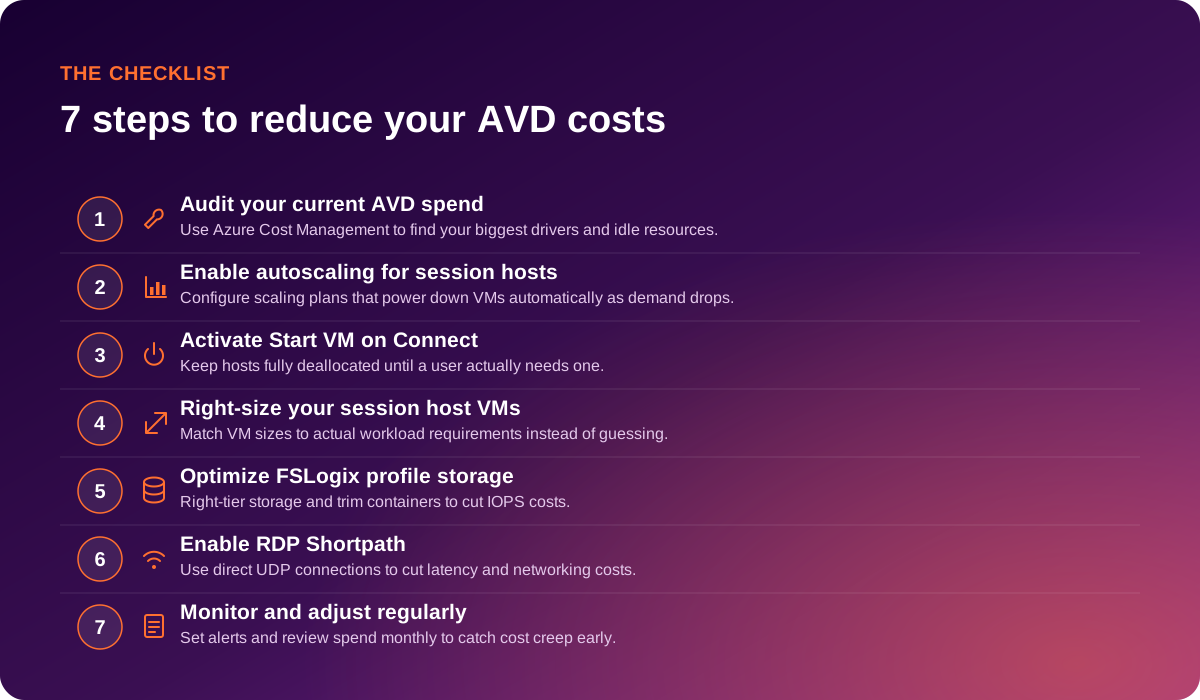
Before you change anything, you need to know where your money is going. Azure Cost Management gives you a breakdown of compute, storage, and networking costs tied to your AVD resources.
Start by identifying which host pools consume the most resources. Look for VMs running during off-hours with minimal user activity. Check storage accounts for oversized FSLogix containers or unused disks.
This audit establishes your baseline and helps you prioritize which optimizations will deliver the biggest return. Many IT teams discover that 20-30% of their AVD spend goes toward resources that sit idle for large portions of the day.
Autoscaling is one of the most effective ways to reduce AVD costs. Microsoft's built-in scaling plans let you define schedules and thresholds that automatically adjust the number of running session hosts based on user demand.
During peak hours, your scaling plan spins up additional VMs to handle the load. After hours, it powers them down. You can configure ramp-up, peak, ramp-down, and off-peak schedules to match your organization's work patterns.
The key is setting appropriate session limits per host and selecting the right scaling algorithm—either breadth-first (spreading users across hosts) or depth-first (filling hosts before starting new ones). Depth-first typically delivers better cost savings because it maximizes utilization before adding capacity.
Start VM on Connect takes autoscaling a step further by letting you deallocate all session hosts completely. When a user connects, Azure automatically starts a VM to handle the session.
This approach works particularly well for environments with unpredictable usage patterns or smaller teams where you don't need VMs running 24/7. The trade-off is a slight delay when the first user connects—usually around 90 seconds while the VM boots.
For many organizations, this wait time is acceptable given the significant cost savings from not running idle VMs. You can also combine Start VM on Connect with autoscaling so that additional hosts power up once the first VM reaches its session limit.
Over-provisioning VM sizes is a common and expensive mistake. If your users run standard productivity applications like Microsoft 365, they don't need the same compute power as users running CAD software or data analysis tools.
Review your VM performance metrics to identify whether your current sizes match actual workload demands. Look at CPU utilization, memory consumption, and disk IOPS during peak periods. If your hosts consistently run below 50% utilization, you're likely paying for capacity you don't need.
Azure offers multiple VM series optimized for different workload types. The Dv5 series works well for general-purpose workloads, while Dsv5 offers additional storage performance for FSLogix-heavy environments. Testing smaller sizes in a pilot host pool before rolling out changes across your environment reduces risk.
FSLogix profile containers often represent a significant portion of AVD storage costs. The default setup creates VHD files that can grow large over time, and storing them on premium storage tiers adds unnecessary expense.
Start by analyzing your profile container sizes and growth rates. Many organizations find that moving FSLogix containers from Premium SSD to Standard SSD delivers adequate performance for most users at a fraction of the cost. For even greater savings, Azure Files with the Cool tier can work for infrequently accessed profiles.
Implementing profile container compaction and excluding unnecessary folders from roaming (like browser caches) also reduces storage consumption. Anunta's managed AVD environments include ongoing FSLogix tuning as part of the operational model, so storage costs stay optimized without requiring your team to monitor them manually.
RDP Shortpath establishes a direct UDP connection between the client and session host, bypassing the Azure relay service. This reduces latency, improves user experience, and lowers your networking costs.
For managed networks, RDP Shortpath works automatically when both client and host are on the same network or connected via VPN. For public networks, you'll need to configure STUN server settings and potentially adjust firewall rules.
The networking cost savings may seem modest per user, but they add up across large environments. More importantly, the improved connection quality means users complete tasks faster, which indirectly reduces session duration and compute costs.
Cost optimization isn't a one-time project. Your user base changes, applications evolve, and Azure pricing updates. Set up Azure Cost Management alerts to notify you when spending exceeds expected thresholds.
Review your AVD metrics monthly. Look for host pools where autoscaling isn't working as expected, users who might benefit from different VM sizes, or storage accounts where costs keep climbing. Azure Advisor also generates recommendations specific to your environment.
The organizations that maintain the best AVD cost efficiency treat it as an ongoing discipline rather than an annual review. Small adjustments made regularly prevent the kind of cost creep that leads to budget surprises.
Beyond compute and storage, several AVD costs catch IT teams off guard. Data egress charges apply when transferring data out of Azure—this impacts organizations with users spread across regions or those integrating AVD with on-premises systems.
Licensing is another area where costs accumulate. You need Windows 10/11 Enterprise or Microsoft 365 licenses for your users, and compliance with licensing terms requires tracking active users versus available licenses.
Backup and disaster recovery also add expense. While Azure Site Recovery and backup services are essential for business continuity, they need to be sized appropriately. Over-protecting non-critical environments wastes money, while under-protecting critical ones creates risk.
These two features complement each other to create a highly efficient AVD environment. Start VM on Connect handles scenarios where all session hosts are deallocated. When the first user connects, Azure powers on a single VM to serve that session.
Once that first VM is running, autoscaling takes over. As more users connect and the initial host reaches its session limit, the scaling plan triggers additional VMs to start. During ramp-down periods, autoscaling deallocates hosts based on the session thresholds you've configured.
This combination delivers the best of both approaches: zero idle compute costs during complete off-hours, with responsive scaling during active periods. The slight connection delay only affects the first user of the day—subsequent users connect to already-running hosts.
.svg)
Managing AVD cost optimization alongside your other IT priorities takes time your team may not have. Anunta runs managed Azure Virtual Desktop environments for enterprise clients, and cost optimization is built into how we operate.
Our team configures autoscaling, FSLogix storage, and session host sizing based on patterns observed across hundreds of deployments. We monitor your environment daily and adjust configurations as usage patterns change. When Microsoft releases new cost-saving features—like recent improvements to scaling plan algorithms—we implement them across client environments.
Anunta's purpose-built platforms track metrics that predict cost creep before it impacts your budget. You get monthly reporting on spend trends and recommendations for further optimization. If you're managing AVD internally and want to reduce both costs and operational burden, a conversation with our team can help you understand what's possible.
Enabling autoscaling typically delivers the fastest results. Most organizations see cost reductions of 30-50% from autoscaling alone, depending on their usage patterns. Anunta configures autoscaling as a baseline for all managed AVD environments because the savings are immediate and predictable.
Users experience a 60-90 second delay when connecting to a deallocated host. After the first user connects, subsequent users connect normally. Anunta recommends this feature for environments where the cost savings justify the occasional boot delay.
Monthly reviews catch most issues before they become expensive. Set up Azure Cost Management alerts for unexpected spikes and review detailed reports every 30 days. Anunta includes this monitoring in managed services so clients don't need to track it themselves.
Yes. Moving profiles to Standard SSD instead of Premium SSD works for most workloads. Anunta's managed environments include FSLogix tuning that balances performance with cost—we monitor profile access patterns and recommend the appropriate storage tier.
The D2s v5 or D4s v5 series handles Microsoft 365 and web browsing workloads efficiently. Anunta typically starts new clients on smaller sizes and scales up only if performance metrics indicate the need. Over-provisioning is one of the most common sources of wasted AVD spend.
Depth-first scaling generally costs less because it fills hosts before starting new ones. Breadth-first distributes users more evenly, which can improve performance during rapid scaling events. The right choice depends on your priorities—Anunta helps clients test both approaches to find the optimal configuration.